

Android cibortvbox reset instructions
If the CiborTV box is connected via Wi-Fi, make sure to connect your smartphone to the same network the box is connected to (please note: the CiborTV box only connects to 2.4GHz networks).
If the CiborTV box is connected to the router via an Ethernet cable, make sure to connect your smartphone to the Wi-Fi network of that same router.
Power on your CiborTV box and wait for the homescreen to load
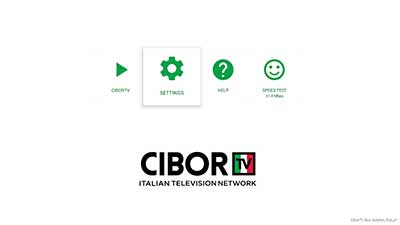
Press the “SETTINGS” icon then select “Network” right menu item and press OK button on remote
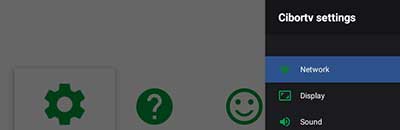
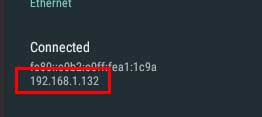
If your CiborTV box is connected to the network via an Ethernet cable, look for the IP address found at the bottom right of the selected menu.
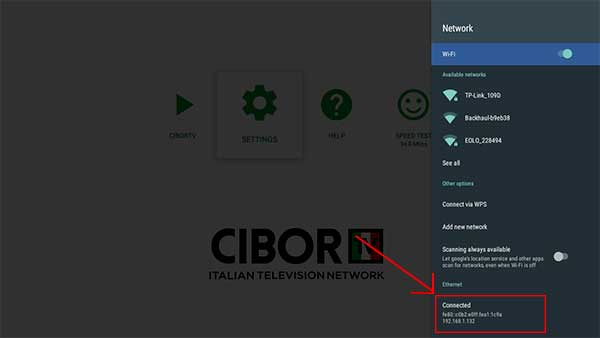
You will find your IP address consisting of four numbers separated by dots, as in the example below.
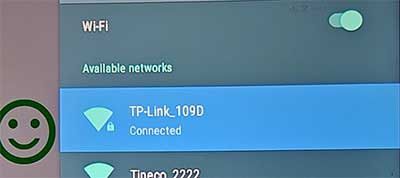
Otherwise, if your CiborTV box is connected to the network via Wi-Fi, locate the network it is connected to, select it using the remote control, and press OK.
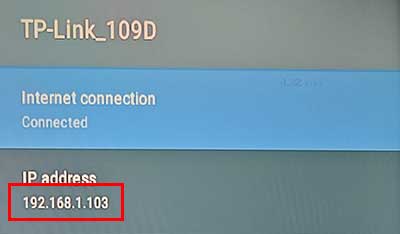
You will find your IP address consisting of four numbers separated by dots, as in the example below.
Download ADB Devices Utility app from Google Play Store and install it on your phone
Find ADB Devices Utlity (Trova dispo…) icon on your homescreen and tap it to open
Once opened tap on the “Refresh” top menu icon
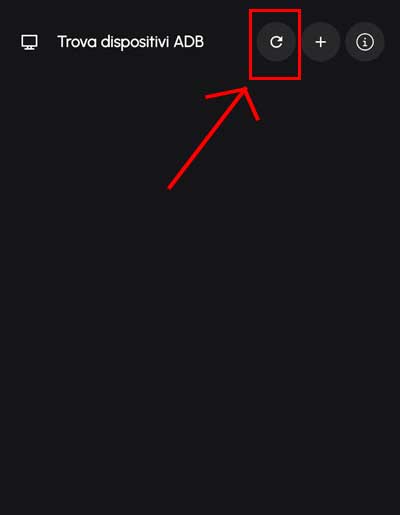
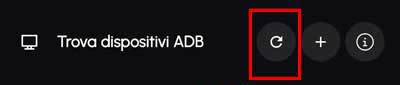
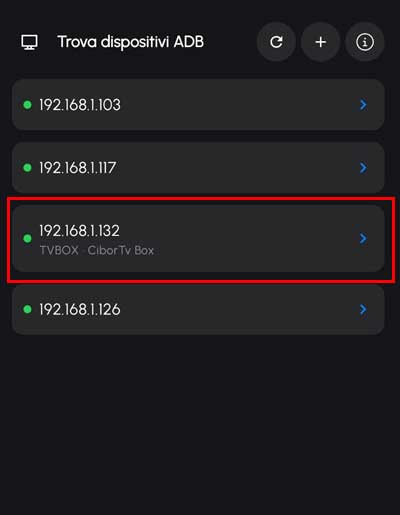
Wait for the network scan is completed, then tap on the device list item with the same IP Address as your CiborTV box (TVBOX – CiborTv Box)
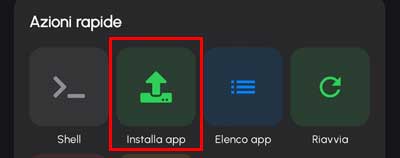
Find the “Installa app” icon on the center menu
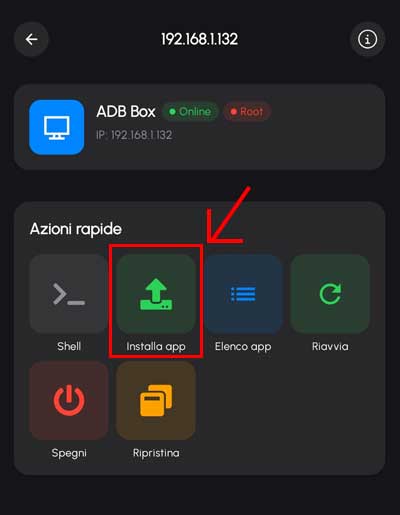
Tap on it
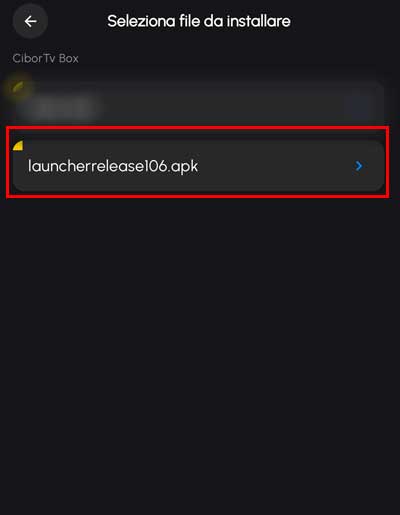
Tap on the “launcherrelease106.apk” list item
Wait for the CiborTV box to complete the reset operation; once the process is finished, verify that your box has the updated software version: using the remote control, click on “Settings” and check that the string reads:
“1.6.6(145):1.6.21(106)@7.1.2”.
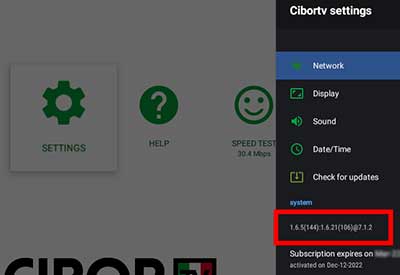
If the version displayed does not match the previous one while the box is on the home screen, press the ‘back’ button on the remote control and check whether the box is installing the necessary updates. If necessary, repeat this process several times.